GitHub issues time tracking: 5 ways to log hours, compared
GitHub issues time tracking isn't built in. Five ways teams add it: extension timers, Projects number fields, label rules, a spreadsheet, or one tool.
Short answer: GitHub issues time tracking is not built in: GitHub has no timer and no time-spent field. Teams add it in five ways: a time tracker's browser extension (Harvest, Toggl Track or Everhour), a number field in GitHub Projects for estimates and hours, a label or comment convention, a spreadsheet, or an issue tracker with time built in. The first is the most common; the last means moving your issues out of GitHub.
GitHub is where the code is, so it is natural to want the hours there too. GitHub's own docs for project fields and the organization-wide issue fields that went generally available in July 2026 cover priority, effort, dates and custom values. None of them is a timer, a time log or a timesheet. This guide compares the five workarounds as of November 2026.
GitLab, for contrast
It helps to see what built-in looks like. GitLab has time tracking on its Free, Premium and Ultimate tiers. You type /estimate 3h or /spend 1h 30m in a comment, optionally with a past date (/spend 1h 2026-11-13), and the issue sidebar shows estimate against time spent, with a report of each entry. A day counts as 8 hours. If you are choosing a forge and hours matter, that is a real point in GitLab's favour.
The 5 ways, side by side
| Way | Timer | Hours on the issue | Extra tool | Best for |
|---|---|---|---|---|
| 1. Extension tracker | Yes, in GitHub | Shown by the extension | Yes | Teams that bill or report from a time tracker |
| 2. Projects number field | No | Yes, typed in | No | Estimates and rough actuals for planning |
| 3. Labels or comments | No | As text | No | Open source and side projects |
| 4. Spreadsheet | No | Only if you type the issue number | A sheet | One or two people, short projects |
| 5. Tracker with time built in | Yes | Yes, with the estimate | Replaces GitHub issues | Small teams who want issues and hours together |
1. A time tracker's browser extension
This is the usual answer to GitHub issues time tracking. The tracker's extension adds a timer button to GitHub pages, and the hours are stored in the tracker.
- Harvest adds a Track time button to issues and pull requests. Entries link back to the issue or PR, Harvest shows how much time is already tracked to it, and it remembers the project and task you used last time.
- Everhour syncs repositories as projects and issues as tasks, then its extension shows a badge on each issue with time per person and the estimate, plus timer and manual entry buttons. The extension has to be installed on every computer you use.
- Toggl Track lists GitHub among the sites its browser extension supports. The extension is open source, and you turn on each site, including a self-hosted GitHub Enterprise domain, in its settings.
Watch for: everyone needs the extension running in the browser they work in, and the GitHub mobile app, the CLI and your editor won't show the button. Reports live in the tracker, not in GitHub.
2. A number field in GitHub Projects
GitHub Projects lets you add custom number fields. Create one called Estimate (h) and another called Hours, and every issue in the project gets both. Number fields can be filtered with ranges such as hours:>8, and a project can set a default value for new items.
The useful part is insights charts: the Y axis can show the sum, average, minimum or maximum of a number field, and the X axis can be grouped by another field. So "estimated vs logged hours per assignee this iteration" is a chart you can build without leaving GitHub.
Watch for: the field holds one number, not a log. Nobody knows who added the last two hours or on which day, so it works for estimates and rough totals, not for billing.
3. A label or comment convention
Some teams agree on text conventions instead: a label per size (est: 2h, est: 1d), and a comment such as /spent 1h30 whenever someone stops work. It costs nothing and is visible to everyone, which suits open source projects where contributors use different tools.
Watch for: GitHub does not read those comments. Totals mean a script against the API, and one typo breaks the count. Labels also turn estimates into a handful of buckets rather than numbers.
4. A spreadsheet
A shared sheet with date, person, issue number, hours and a note. It is honest, free and easy to total. It also depends on people remembering, it never learns that an issue was closed or moved to another repository, and by the end of the month it is usually a reconstruction. Fine for one or two people on a short project.
5. An issue tracker with time built in
The fifth way is to keep the issues somewhere that tracks time itself, and keep GitHub for code and pull requests. To be clear about what that means with Notch: Notch has no GitHub integration. It doesn't sync issues, read commits or link pull requests. You would plan and track the work in Notch and reference issue keys like NAV-6 in your branch names and PR titles by hand.
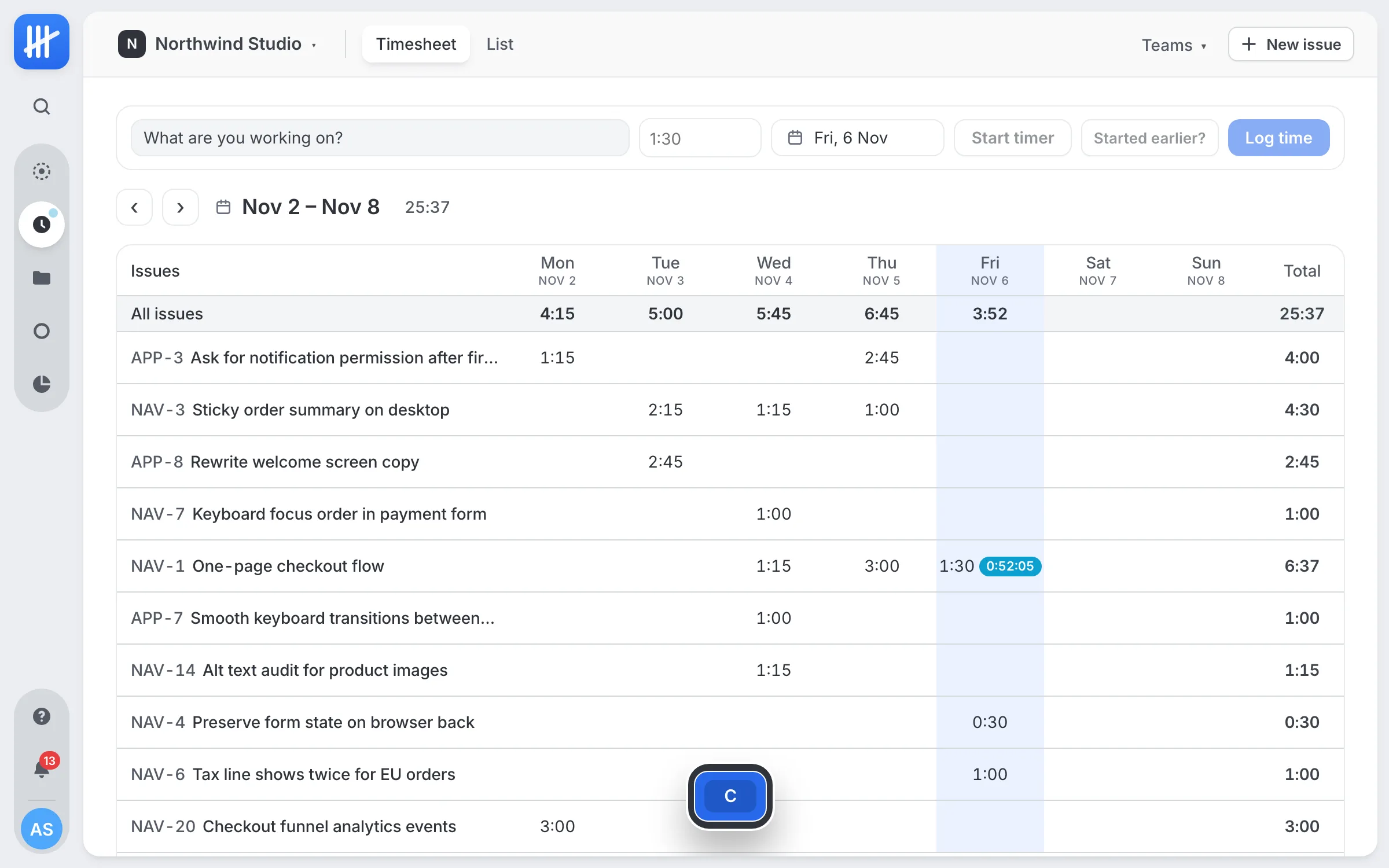
What you get in return is time that needs no extension. Every Notch issue has a timer (press T), an estimate in hours and a bar that fills as time is tracked. A forgotten timer stops itself after 8 hours. The week's timesheet fills from the timers, and reports group hours by person, issue, label, project or cycle against estimates, with a CSV export.
If your client already lives in your editor, Notch's MCP server can log time and update issues from there, which closes some of the distance to the code. For a wider look at servers that do this, see our comparison of MCP servers for issue and time tracking.
Which GitHub issues time tracking option to pick
- You bill clients and want a timer on the issue: Harvest or Everhour.
- You only need estimates and rough actuals for planning: Projects number fields and an insights chart.
- Open source, mixed contributors: a label and comment convention.
- Hours matter enough to change where issues live: GitLab's built-in tracking, or an issue tracker with time built in.
The same choices come up on other trackers; our guides to Jira time tracking and Linear time tracking cover them there.
Questions people ask
Does GitHub have built-in time tracking?
No. GitHub issues and Projects have no timer, no time-spent field and no timesheet. You can add a number field to a project for estimates or hours, but someone has to type the numbers in.
What is the best time tracker for GitHub issues?
Harvest, Toggl Track and Everhour all put a timer on GitHub issues through a browser extension. Harvest also covers pull requests and links each entry back to it; Everhour shows estimates and time per person on the issue; Toggl's extension is free and open source.
How does GitLab time tracking compare with GitHub?
GitLab has it built in, on every tier including Free. You type /estimate 3h or /spend 1h 30m in a comment or description, and the issue sidebar shows the estimate, the time spent and a per-item report of entries.
Can GitHub Projects sum hours?
Projects insights charts can show the sum, average, minimum or maximum of a number field on the Y axis, grouped by another field. So a number field called Hours can be charted per assignee or per iteration, as long as people keep it up to date.