Notch now has an MCP server: your issues and hours, from the tools you already code in
The Notch MCP server lets Claude, Claude Code, Cursor or any MCP client read and update your issues, comments, cycles and hours, signed in as you.
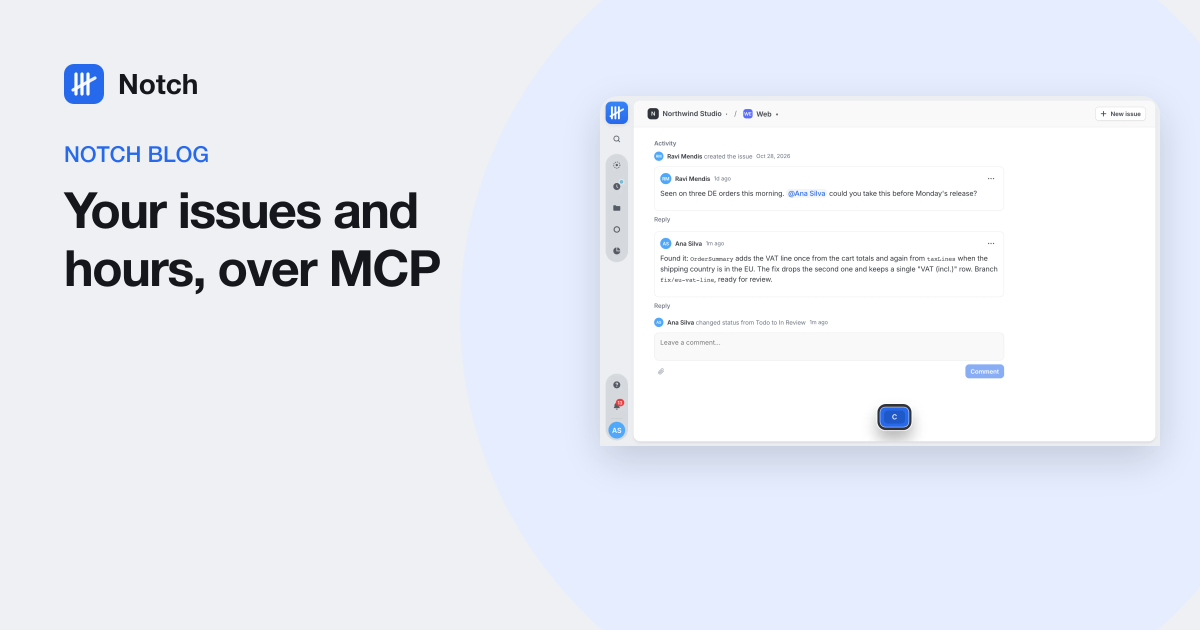
Short answer: Notch has an MCP server at https://app.notchhq.app/mcp. Add that address to Claude, Claude Code, Cursor or any other MCP client and sign in to Notch when it asks. The client can then read and update your issues, comments, projects, cycles, timers and timesheets: 35 tools, as you, under the same rules as the app.
Most of our day happens in an editor and a terminal. The issue tracker is a tab we switch to, usually to do something small: leave a note on what we found, move the issue to review, log the forty minutes we just spent. Each one takes a minute. Across a team and a week, those minutes add up, and the notes and hours are the first things to get skipped.
The Model Context Protocol (MCP) is an open standard that lets a client, such as Claude or Cursor, call tools that another product offers. Notch now offers its own, so the client you already work in can do those small things in Notch for you, as you.
What changed on 23 November
When we launched the server, you connected a client by creating an MCP token in Notch's settings and pasting it in. Now the client signs in with your Notch account instead, in your browser, the same way you sign in to the app. A token could leak, and it gave a client one fixed workspace; signing in does neither.
The old MCP tokens have stopped working. If you set one up, remove the Notch server from your client and add it again as described in Setting it up. Your issues, comments and hours are unchanged. API tokens for the Linear and Everhour import tool still work as before.
What the Notch MCP server can do
The server exposes 35 tools. They cover the work a team does every day:
| Area | Tools |
|---|---|
| Find work | list your workspaces and teams, search issues, list issues (by team, project, cycle, or yours), get an issue, read its timeline |
| Change work | create an issue, comment, edit a comment, update an issue (state, assignee, priority, estimate, labels, parent, project, cycle, due date), add a relation, subscribe |
| Planning | list members, labels, projects and cycles; create and update projects and labels |
| Time | start and stop your timer, list and log time entries, edit an entry, read and set your timesheet, run the time report |
| Inbox | list notifications, read, archive or snooze one, mark all read |
An issue can be named by its key, like NAV-6, so a client can act on the issue you mention in a commit message or a branch name without looking up an id first.
Each tool tells the client whether it only reads or also changes something. Clients such as Claude use that to run lookups straight away and ask you before a change.
An example, start to finish
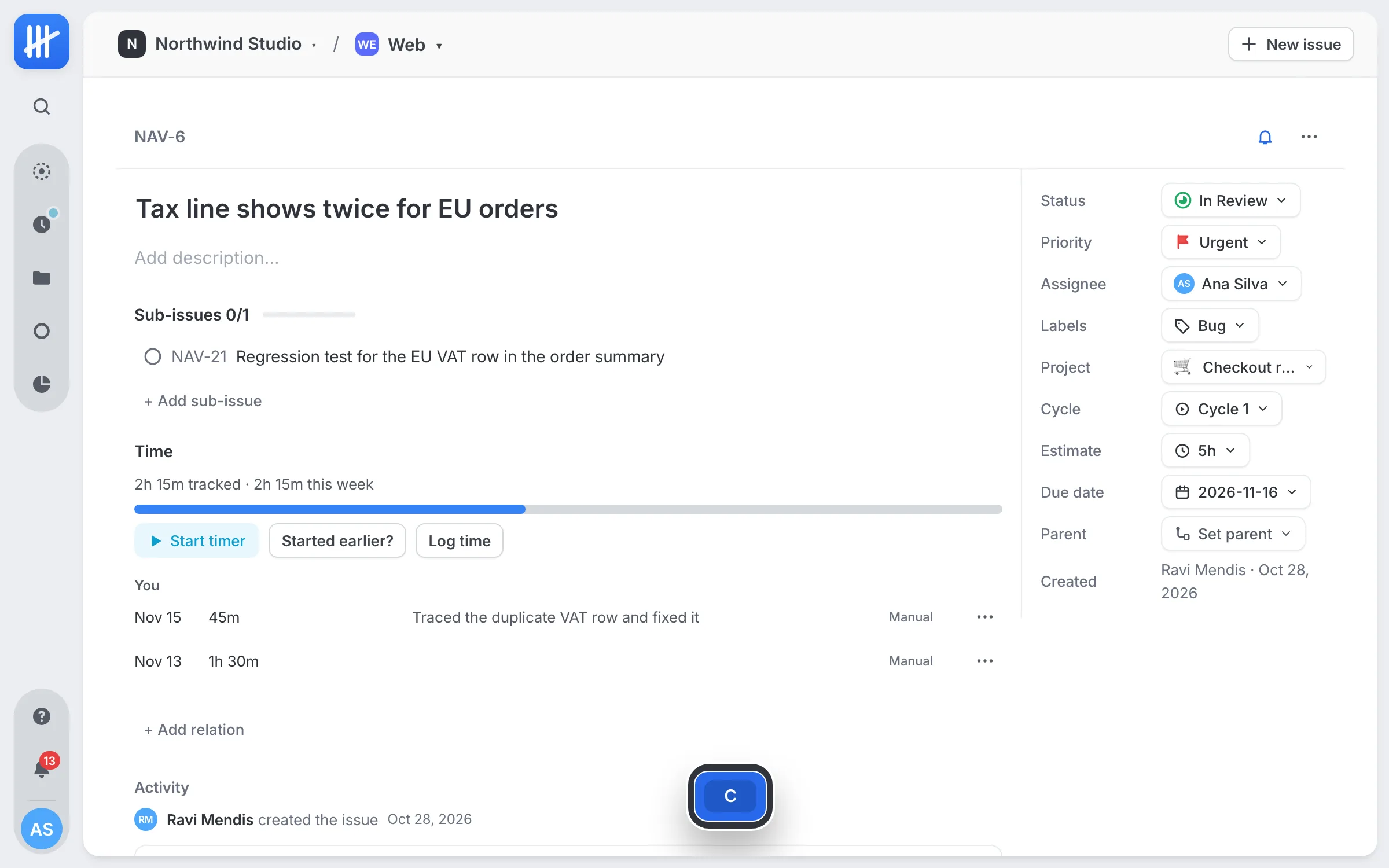
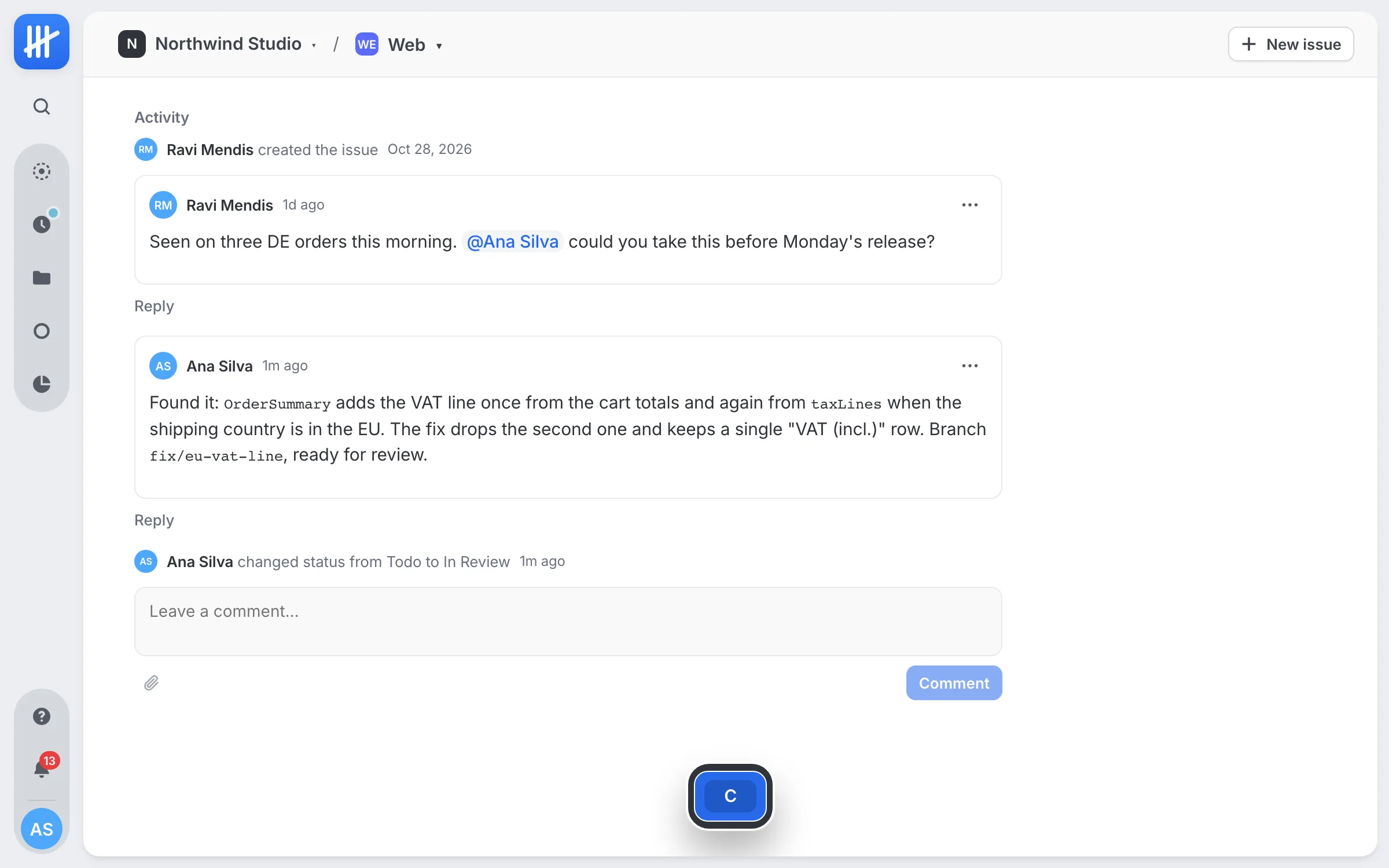
Here is a real run against our demo workspace, Northwind Studio. NAV-6, "Tax line shows twice for EU orders", was an urgent bug assigned to Ana. After fixing it in her editor, she asked her client to wrap it up in Notch. It made four calls:
add_commenton NAV-6, explaining the cause and naming the branch.update_issueto move NAV-6 from Todo to In Review.log_time: 45 minutes on NAV-6, with the note "Traced the duplicate VAT row and fixed it".create_issuefor a regression test, thenupdate_issueto make it a sub-issue of NAV-6.
This is what the team sees in Notch afterwards. Nothing marks it as different: it is Ana's comment, Ana's status change and Ana's time, because the client signed in as her.
Setting it up
1. Add Notch to your client
In Claude on the web or desktop, open Settings > Connectors, choose Add custom connector, and enter https://app.notchhq.app/mcp.
In Claude Code, one command:
claude mcp add --transport http notch https://app.notchhq.app/mcpOther clients need only the server address and the HTTP transport. Any client that supports remote MCP servers with OAuth sign-in works the same way.
2. Sign in to Notch
The first time the client connects, it opens a Notch sign-in page in your browser. Sign in as you normally do and allow the client access. There is no token to create, copy or keep safe.
3. Ask for something small
"What's assigned to me in this cycle?" or "Log an hour on NAV-12 for today" are good first requests. The client lists the tools it found, and you can watch each call it makes.
If you're in more than one workspace, say which one ("in Northwind Studio..."). The client can list your workspaces and passes the one you mean with each call.
What it can't do, on purpose
A client acts as you, with your role in the workspace: a member's client can do what a member can, and an admin-only change is refused for it just as it would be in the app. We also kept the server to everyday work and left out anything hard to take back:
- No deletes. Not issues, comments, time entries, relations, labels or projects.
- No administration. No members, invites, teams, tokens, imports or workspace settings.
- The same rules as the app. Time entries can't overlap, manual time follows the workspace setting, and creates share the same per-person limit as the app, so a runaway client can't flood a workspace.
- Lists are capped. A list returns at most 100 issues and says when there were more, so a client narrows its question instead of pulling everything.
- Membership is checked on every call. If you leave a workspace, or an admin removes you, your client loses access to it on its next call.
- Plan limits apply too. When a workspace on the Free plan has more members than Free allows, it is read only in the app, and the same goes for a client: it can still look things up and stop your timer, but changes wait until the workspace is back within the limit or on a paid plan.
Everything a client does is recorded in the issue's activity under your name, and every change can be reverted in the app. To disconnect a client, remove the Notch server from it.
Your data
The server keeps no record of a call beyond the change it makes and our usual request logs. It sees the tool calls your client sends, not your conversation with it. What a client reads and writes is your workspace's data, handled as our Privacy Policy describes.
If you connect a client and find a tool missing, or a result that gives it more than it needs, tell us at hello@notchhq.app. Those two lists decide what we change next.
Questions people ask
What is an MCP server?
The Model Context Protocol is an open standard that lets an assistant or editor call tools in another product. Notch's MCP server offers 35 such tools, so a client like Claude or Claude Code can read your issues, comment, move work along and log time without you opening the app.
How do I connect Claude Code to Notch?
Run: claude mcp add --transport http notch https://app.notchhq.app/mcp. The first time Claude Code uses it, a browser window opens so you can sign in to Notch. There is no token to create or paste.
Who can connect a client?
Any member of a Notch workspace. The client signs in as you and has your role, so it can do what you can do in the app and nothing more.
Can an MCP client delete things in Notch?
No. There are no delete tools, and none for members, tokens, imports or workspace settings. Everything a client does shows in the issue's activity under your name, and every change can be undone in the app.
I set up Notch MCP with a token before. Does it still work?
No. Since 23 November 2026 the MCP server signs in with your Notch account instead of a token, and the old MCP tokens no longer work. Remove the Notch server from your client, add https://app.notchhq.app/mcp again and sign in when it asks.
I'm in more than one workspace. Which one does the client use?
The one you name. The client can list your workspaces and passes the one you mean with each call. If you're in only one, it uses that one.