Jira time tracking: the 4 ways to log hours on Jira issues
Jira time tracking, four ways: native worklogs and estimates, Tempo or Clockwork, a linked tracker like Harvest, or a tracker with time built in.
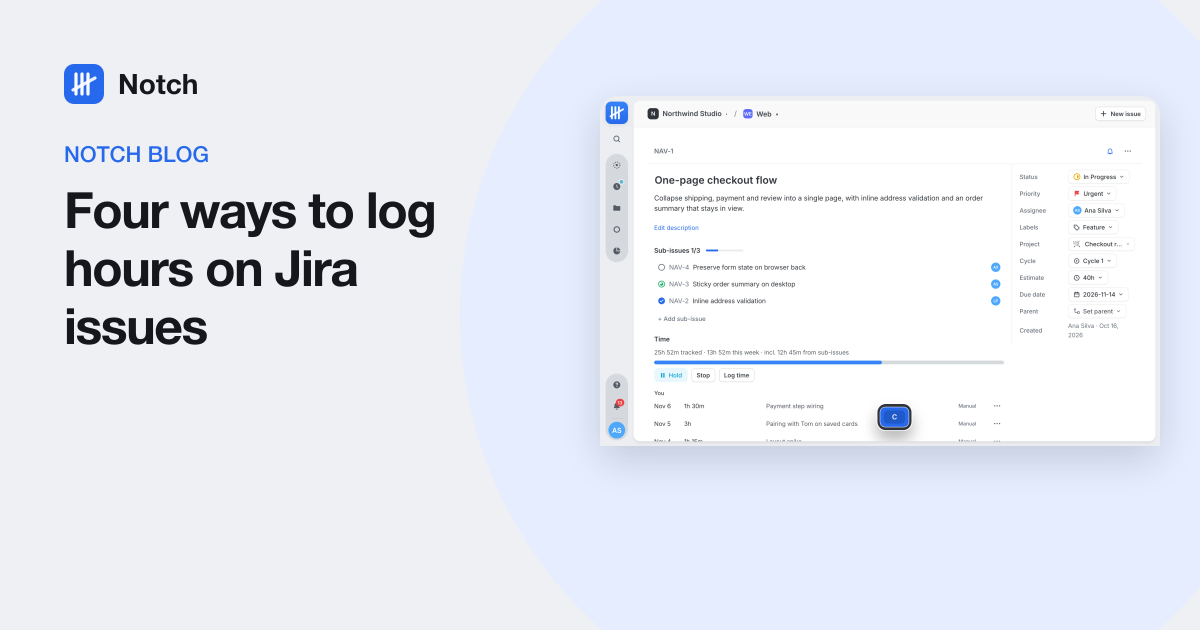
Short answer: Jira time tracking comes in four forms. Use Jira's native worklogs and estimates; add a Marketplace app such as Tempo Timesheets or Clockwork for timers, timesheets and approvals; link a separate time tracker such as Harvest, Toggl Track or Everhour to Jira through its extension or app; or move to an issue tracker with time built in. The right one depends on how much reporting you need and how many tools you want to pay for.
Jira does track time. What it does not do on its own is give a team a timer, a weekly timesheet or a report that a client or a manager can read without help. This guide walks through the four ways teams fill that gap, as of November 2026, with what each costs you in setup and in daily friction.
A note on words: Atlassian's Cloud docs now say work items for issues and spaces for projects. We use "issues" below because that is what most people still search for.
The 4 ways, side by side
| Way | Timer | Weekly timesheet | Where hours live | Best for |
|---|---|---|---|---|
| 1. Native worklogs | No | No | Jira | Teams that log a few entries a day and report lightly |
| 2. Marketplace app (Tempo, Clockwork) | Yes | Yes | Jira worklogs plus the app | Teams that live in Jira and need approvals or real reports |
| 3. Linked tracker (Harvest, Toggl Track, Everhour) | Yes, inside Jira | Yes, in the tracker | The tracker, sometimes synced back | Teams that already invoice or report from that tracker |
| 4. Tracker with time built in | Yes | Yes | One tool | Small teams ready to leave Jira |
1. Jira's native time tracking and worklogs
How to turn it on
In Jira Cloud, time tracking is on by default. Atlassian's configure time tracking page puts the global settings under Settings, Work items, Time tracking. There an admin sets:
- Working hours per day and working days per week, which decide what "1d" and "1w" mean.
- Time display format (pretty, days or hours) and the default unit used when someone types a bare number.
- Whether comments made during transitions are copied into the work description.
Two more things have to be true before anyone can log time. People need the Work on work items permission in the space, and the Time tracking field has to be visible: through field configurations in company-managed spaces, or on the work type in team-managed spaces. To let people set an original estimate when they create an issue, add that field to the create and edit screens.
Original estimate, log work, remaining
Each issue carries three numbers: the original estimate, the time spent and the time remaining. To log time on a work item, open it, choose More actions, then Log work (or click the Time tracking field), and enter the time in weeks, days, hours and minutes, such as 2d 4h 30m. Logging work lowers the remaining estimate. Editing or deleting an entry needs its own permissions, and when you delete one Jira can add the time back to the remaining estimate or let you set it yourself.
There is no timer. Every entry is typed in after the fact.
The reports you get
Each issue shows logged against remaining time, and you can filter and sort issues by their time fields. Jira Software has also had a Time tracking report that compares estimates with time spent for the issues in a version; Atlassian's support note on it says it only fills in when the Fix version field is shown. Check that it still appears under your space's reports before you plan around it. What native Jira does not give you is a weekly timesheet per person or a "hours by client this month" view. That gap is why the Marketplace has a whole time tracking category.
Cloud vs Data Center
On Data Center the same fields exist, with two differences worth knowing. An admin has to disable time tracking before changing its settings, then turn it back on, and there is a legacy mode that locks the original estimate once anyone logs work. Atlassian's Data Center docs cover both. Also plan for the calendar: Atlassian's Data Center end of life page sets March 28, 2029 as the date Jira Data Center subscriptions expire and instances become read-only.
Choose this if a handful of people log a few entries a day and nobody needs more than per-issue totals.
2. A Marketplace app: Tempo Timesheets or Clockwork
Jira Cloud's time tracking settings include a provider dropdown, so a Marketplace app can take over the time tracking features. Atlassian notes that your time data may then be stored with the app's developer, so read their privacy terms.
Timesheets by Tempo is the long-standing option. Its listing covers approvals at the timesheet or project level, billable and non-billable hours, locking a period before payroll or invoicing, calendar suggestions from Google and Outlook, and reports by project, client or team. It is listed for Jira Cloud and Data Center.
Clockwork, from HeroCoders, is built around timers. Besides manual entries and start and stop timers, it can run automatic timers that start when an assigned issue moves into an active status and stop when it leaves, within the assignee's working hours. Its Pro listing says it works with Jira Cloud.
Watch for: a second bill on top of Jira, priced by your Jira user tier, and a second set of screens to learn. Check the pricing tab on each Marketplace listing.
Choose this if the team will stay in Jira and someone needs approvals, timesheets or reports that a client can read.
3. A separate time tracker linked to Jira
If your company already runs a time tracker for invoicing or payroll, you can bring its timer into Jira instead of adding a Jira app.
- Harvest adds a timer to the right-hand column of each Jira issue. The issue's key and title go into the entry's notes, and the entry links back to the issue. Invoicing and expenses stay in Harvest.
- Toggl Track puts a timer button inside Jira through its browser extension, and its Jira Sync copies Jira projects and issues into Toggl. Toggl says that sync runs one way, from Jira to Toggl.
- Everhour installs as a Marketplace add-on and replaces Jira's time tracking screens with its own. With sync turned on, its entries are written into Jira's native worklogs and its estimate maps to Jira's original estimate. Older history does not sync, and time typed straight into Jira does not flow back to Everhour.
Watch for: two sets of projects to keep in step, and the question of which tool is the source of truth when the numbers disagree. Read each integration's sync rules before the first invoice.
Choose this if billing already runs from Harvest, Toggl or Everhour and Jira is only where the work is described.
4. Move to a tracker with time built in
The last way is to stop joining an issue tracker and a time tracker at all. That is a bigger step, and for a team of hundreds with years of Jira workflows it is usually the wrong one. For a small team that mostly wants to know where the hours went, it removes the add-on, the sync rules and the second seat.
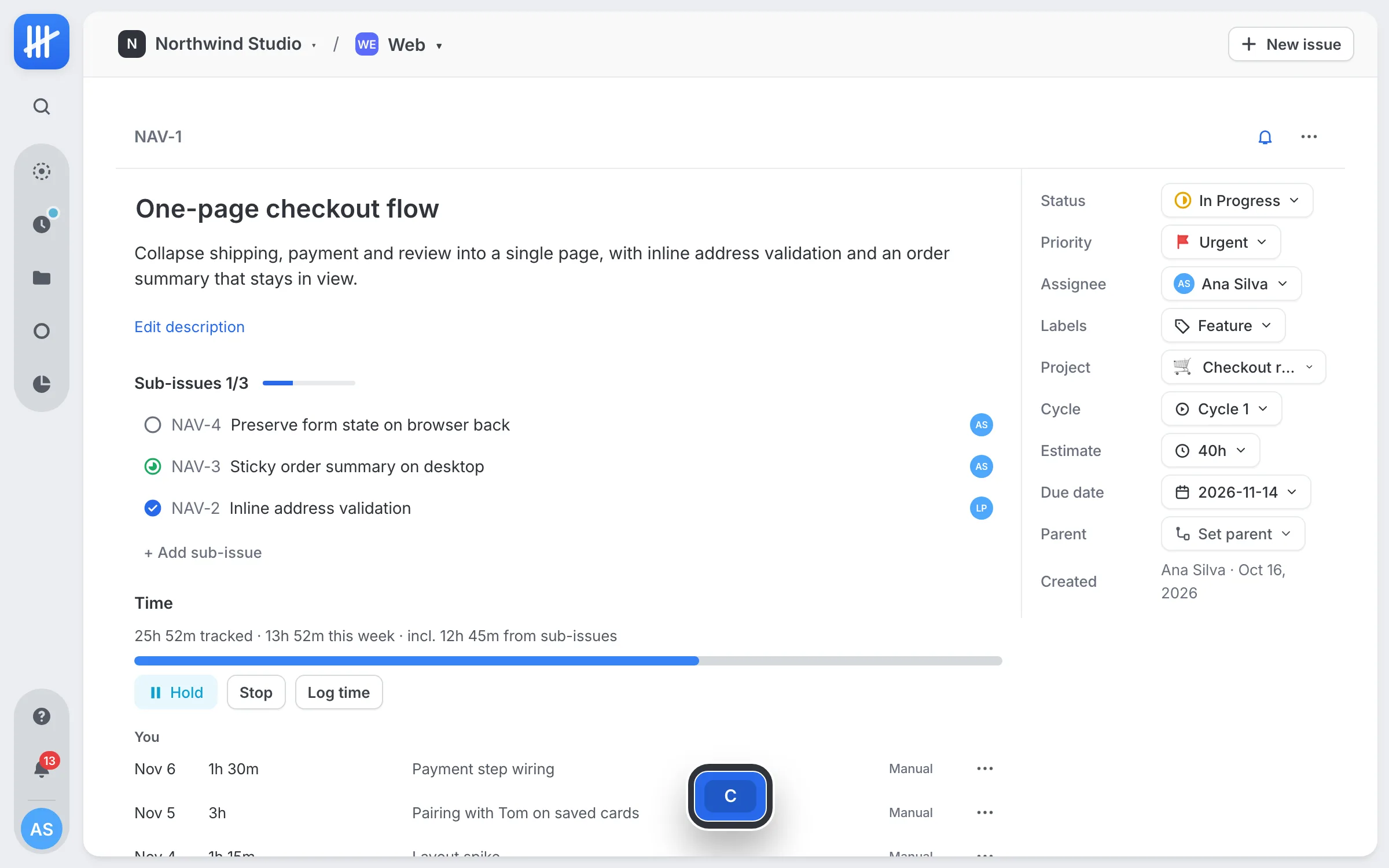
This is what we built Notch for. Every issue has a timer (press T), an estimate in hours and a bar that fills as time is tracked. The timesheet fills itself from those timers, one row per issue and one column per day, and you can fix a cell by typing in it. Reports group hours by person, issue, team, label, project or cycle, set them against estimates and export to CSV.
To be plain about the limits: Notch has no Jira integration and no Jira importer. It imports from Linear and Everhour only, so moving from Jira means starting fresh or carrying open work over by hand. It also has no hourly rates or invoicing; agencies export the CSV report to their billing tool, as we describe in how agencies track billable hours.
Choose this if you are a team of 3 to 30, Jira feels heavier than your work, and paying for an issue tracker plus a time tracker for everyone has stopped making sense.
Which Jira time tracking option fits
- A few entries a day, light reporting: native worklogs.
- Approvals, timesheets, client reports, staying on Jira: Tempo or Clockwork.
- Invoices already come from Harvest, Toggl or Everhour: link that tracker.
- A small team that wants one tool: a tracker with time built in.
Whichever you pick, log against the issue rather than a project bucket. The same advice holds on other trackers too; see our guides to Linear time tracking and GitHub issues time tracking.
Questions people ask
Does Jira have built-in time tracking?
Yes. Jira Cloud has a Time tracking field with an original estimate, time spent and time remaining, and people log work on each work item in units like 2h 30m. There is no start and stop timer in Jira itself; timers come from Marketplace apps or outside trackers.
How do I enable time tracking in Jira Cloud?
Time tracking is on by default. An admin sets the working hours per day, days per week, display format and default unit under Settings, Work items, Time tracking, adds the Time tracking field to the create and edit screens, and grants the Work on work items permission.
Is Tempo or Clockwork better for Jira?
Tempo Timesheets is the long-standing choice for approvals, billable hours and locking periods, and it is listed for Cloud and Data Center. Clockwork, from HeroCoders, leans on timers that start and stop with an issue's status, and its Pro listing is for Jira Cloud.
Can Toggl Track log time to Jira?
Toggl's browser extension adds a timer inside Jira, and its Jira Sync brings Jira projects and issues into Toggl. Toggl describes that sync as one way, from Jira to Toggl, so the hours stay in Toggl unless you add another tool to copy them back.